
Wix accessibility widget
Install the EqualWeb accessibility widget on Wix in minutes - 7 short steps add AI-powered WCAG 2.2, ADA and EAA remediation and 9 accessibility profiles to any Wix site.
How to install EqualWeb on Wix
Enhance your Wix website's accessibility with EqualWeb! Installing EqualWeb on your Wix website is a simple process that will greatly improve its accessibility and compliance. With our solutions and services, you can ensure that all users can navigate and engage with your website effectively.
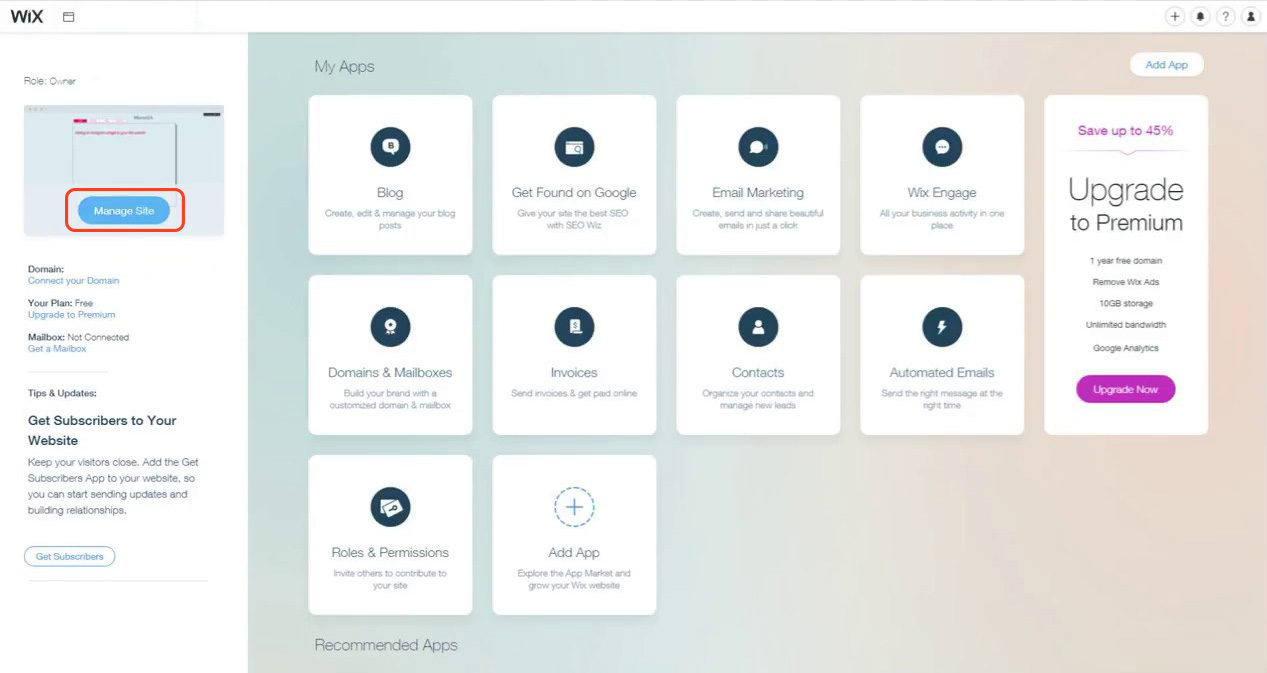
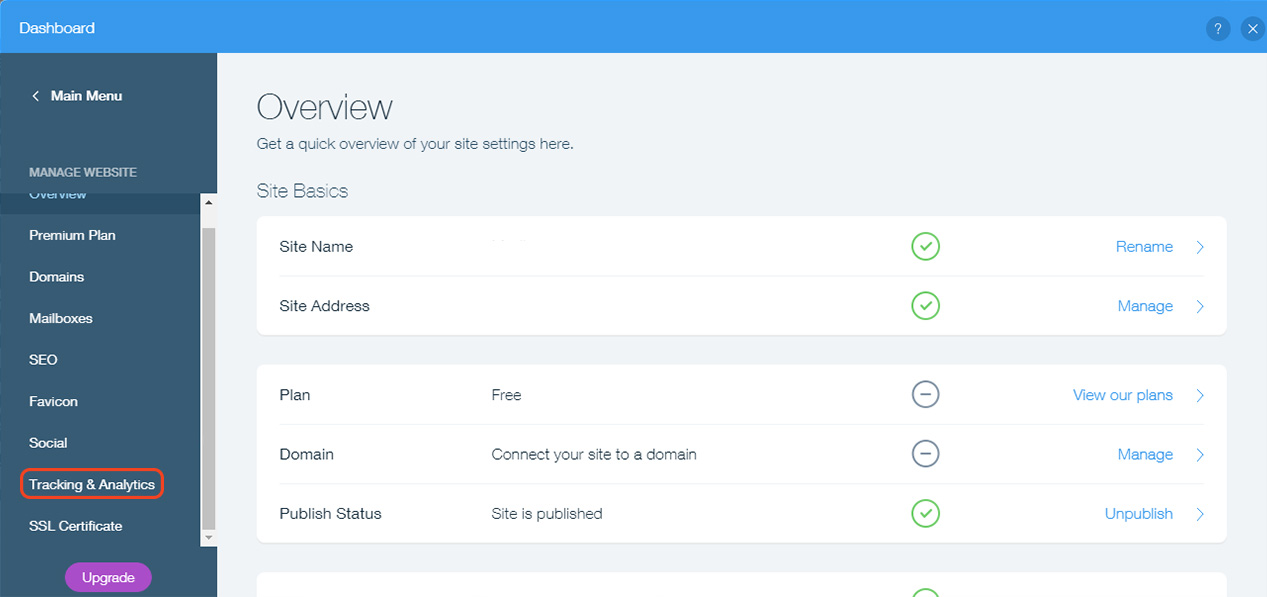
- Go to "Settings" in your site's dashboard.
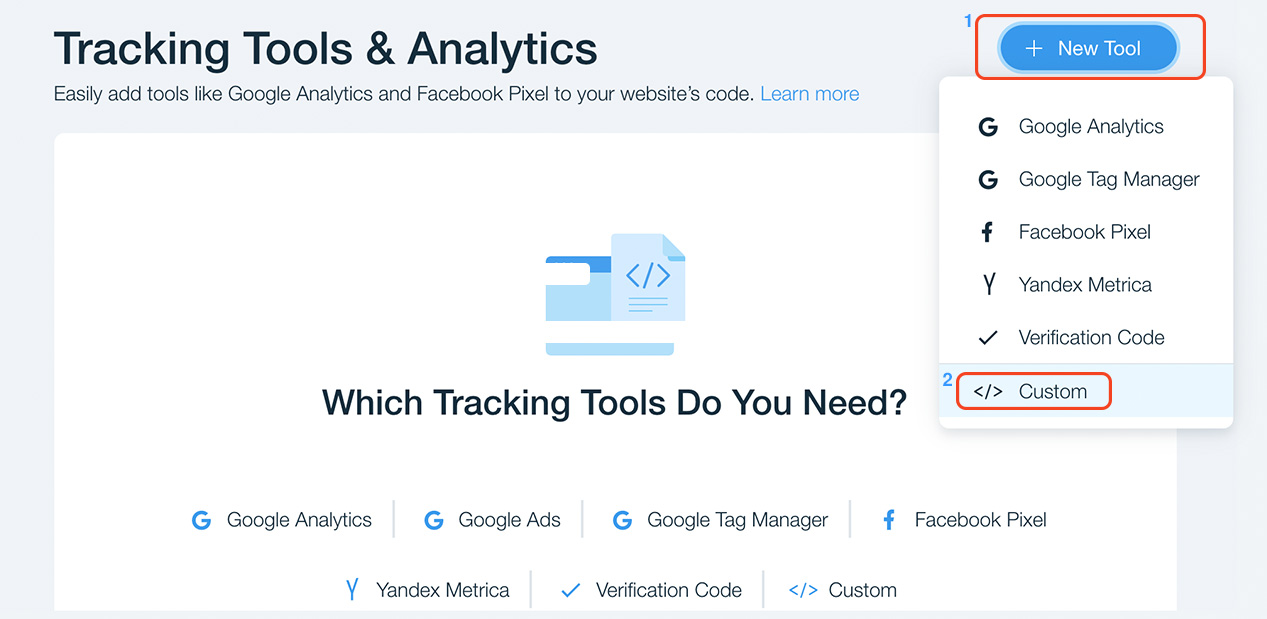
- Click the "Custom Code" tab under "Advanced Settings".
- Click + "Add Custom Code" at the top right.
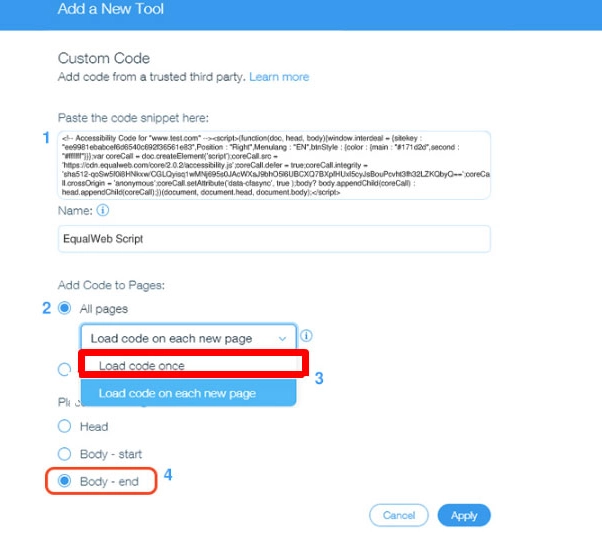
- Paste the code snippet in the text field.
- Choose a name for your code.
- Choose the "Load Code Once" option from the select box.
- Place the code at the body end.
Your EqualWeb installation code is waiting in your account - start a 7-day free trial or log in to copy it.
The same EqualWeb widget, on Wix
EqualWeb's Accessibility Widget is an AI-powered accessibility solution that automatically remediates WCAG 2.2, ADA and EAA issues on any website and adds a profile-based accessibility menu - installed with one line of code.
Remediation is aligned with the W3C Web Content Accessibility Guidelines (WCAG) 2.2, the technical standard behind the ADA, the European Accessibility Act and most accessibility laws worldwide.