
TL;DR: Interactive PDFs can be made accessible by adding proper tags, ensuring keyboard compatibility, and testing with screen readers. Accessibility enhances usability, compliance, and inclusivity for all users.
Understanding Accessibility in Interactive PDFs
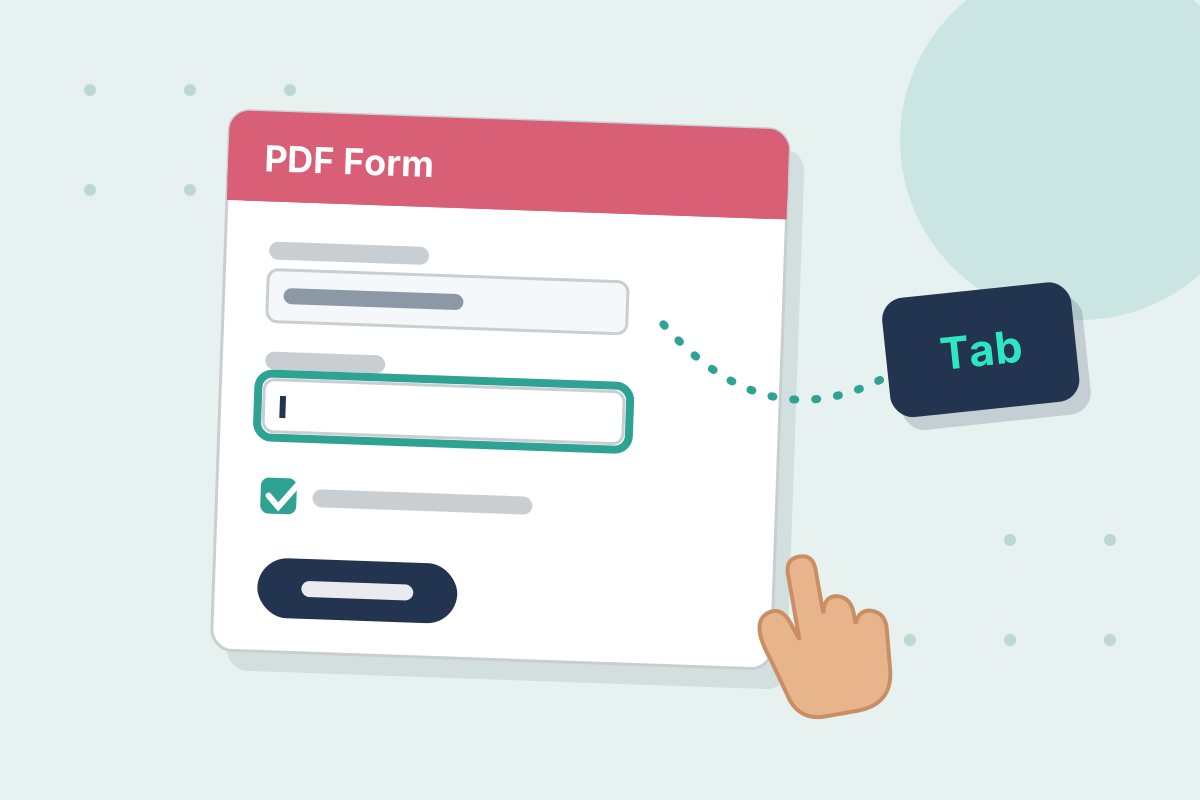
Interactive PDFs are widely used for forms, buttons, and dynamic features, but without accessibility, they become barriers for users relying on assistive technologies. Accessible interactive PDFs ensure that everyone—including those using screen readers or keyboard navigation—can navigate and interact with your content.For example, a screen reader user navigating a poorly designed PDF might hear “Button Unlabeled” instead of “Submit Form,” creating frustration. Proper accessibility ensures usability, clarity, and a better user experience.
Why Interactive PDF Accessibility Matters
Making interactive PDFs accessible isn’t just about meeting legal requirements like the ADA; it’s about creating inclusive and user-friendly content. Here’s why accessibility matters:- Inclusivity and Usability
Accessible PDFs work seamlessly with assistive technologies like screen readers, enabling users with disabilities to engage with your content. - Compliance with Standards
Adhering to WCAG and ADA standards minimizes legal risks and demonstrates your commitment to inclusivity. - Enhanced User Experience
- Accessibility improves usability for everyone, not just individuals with disabilities. A clear and structured design benefits all users.
Preparing Interactive PDFs for Accessibility
Before diving into tagging and testing, preparation is key. Here’s how to get your interactive PDF ready:- Organize Content Logically
Use clear headings and a logical structure to guide users and assistive technologies through the document. - Set a Reading Order
Define a logical reading order for screen readers to follow, ensuring the content flows naturally. - Identify Interactive Elements
Pinpoint all interactive elements, such as buttons and forms, that need to be labeled and tagged appropriately.
Key Steps to Make Interactive PDFs Accessible
- Tagging Elements
Tags are the foundation of accessibility in PDFs. Use tools like Adobe Acrobat Pro to add tags for:- Headings: Use proper levels (H1, H2, H3) to create a clear hierarchy.
- Buttons: Label buttons with descriptive text like “Submit Form” instead of vague terms.
- Form Fields
Add labels to form fields so users know what information to input.
- Images: Include alt text for images or mark decorative images as artifacts to avoid confusion.
- Keyboard Navigation
Interactive PDFs must be fully operable using only a keyboard. Ensure:- Tab Order
Set a logical tab order for users to navigate through elements seamlessly. - Keyboard Shortcuts
Use shortcuts like Enter to submit forms or Esc to close pop-ups. - Tooltips and Descriptions
Add tooltips to provide additional context for buttons, links, and form fields. These help users understand the purpose of each element.
- Tab Order
Testing Interactive PDFs for Accessibility
Testing ensures that your accessibility features work as intended. Follow these steps:- Run an Accessibility Checker
Use tools like Adobe Acrobat’s built-in checker to identify and resolve accessibility issues. - Test with Screen Readers
Use screen readers like JAWS or NVDA to navigate the PDF and ensure all elements are read accurately. - Validate Keyboard Navigation
Navigate the PDF using only a keyboard. Check that all interactive elements are tabbable and functional. - Gather User Feedback
Involve users with disabilities in testing to uncover usability issues and make improvements.
Final Thoughts: Making Interactive PDFs Inclusive
Creating accessible interactive PDFs may require extra effort, but the benefits are worth it. Accessibility enhances usability, ensures compliance with legal standards, and demonstrates a commitment to inclusivity.EqualWeb provides tools and expertise to help you make your PDFs accessible.
Keep reading
Last updated . Reviewed by the EqualWeb accessibility team.
Accessibility questions about your own site?
Run a free check, or talk to a certified IAAP/CPWA specialist about audit, remediation and monitoring.